






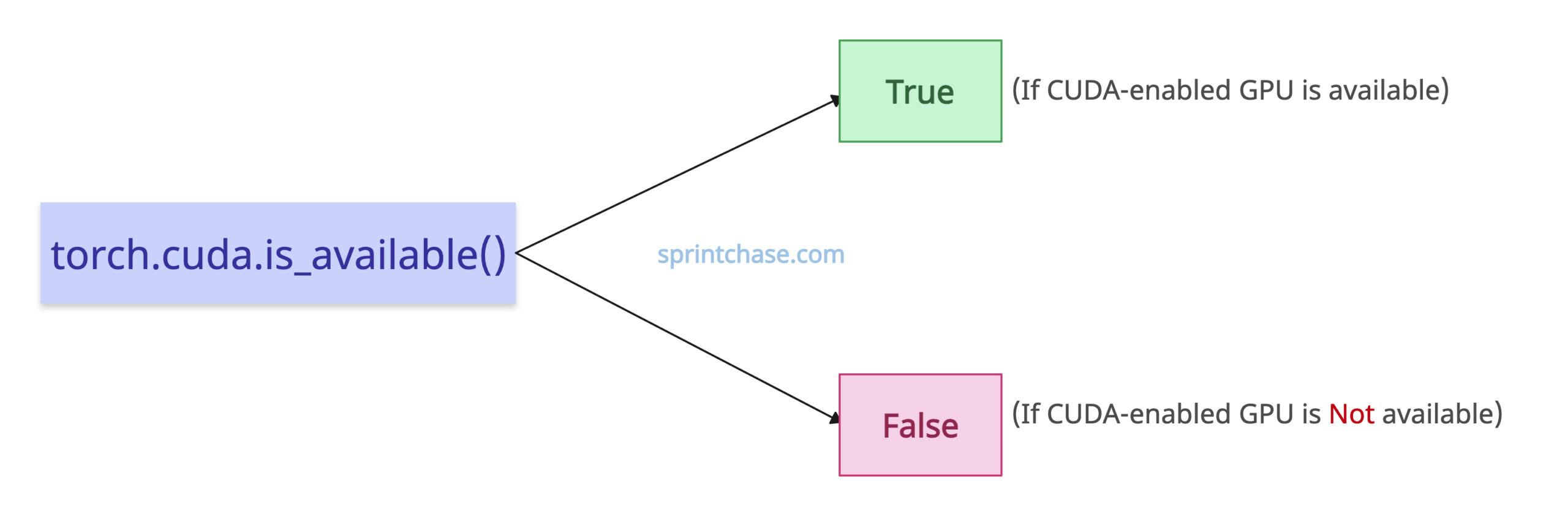
The torch.cuda.is_available() method checks if a CUDA-enabled GPU is available or not. It returns True if a compatible CUDA-enabled GPU is detected and False otherwise.
You can use it while toggling between CPU and GPU devices in a PyTorch workflow.
Syntax
torch.cuda.is_available()
Checking CUDA availability
I am using a T4 GPU. Let’s check its availability.import torch print(torch.cuda.is_available())
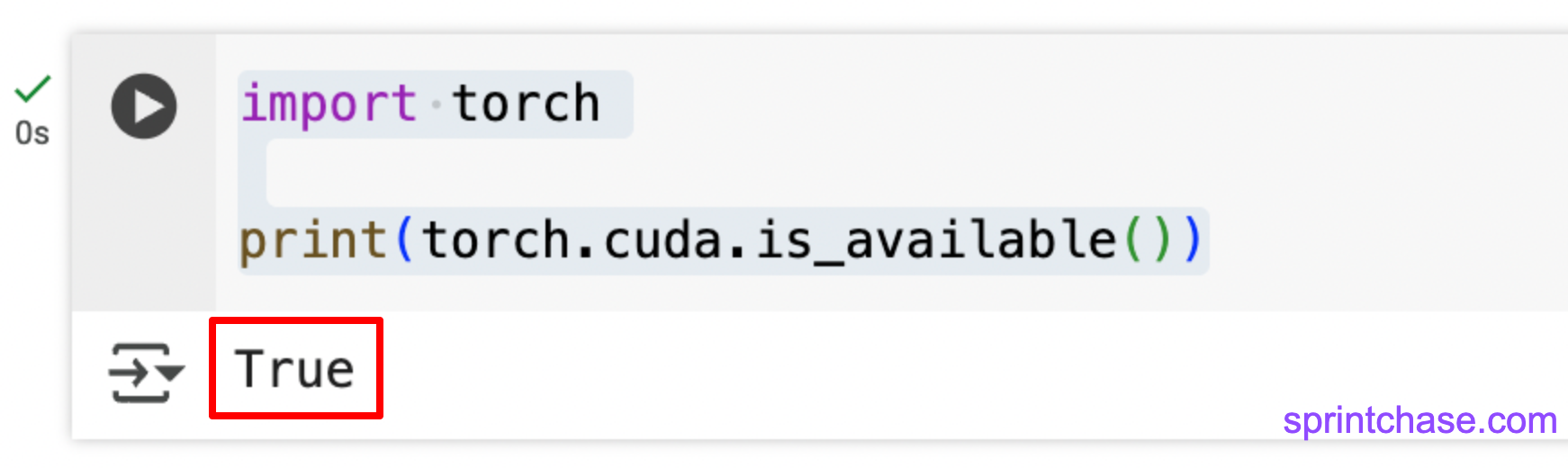 We got True, which means we are connected to a CUDA-enabled GPU.
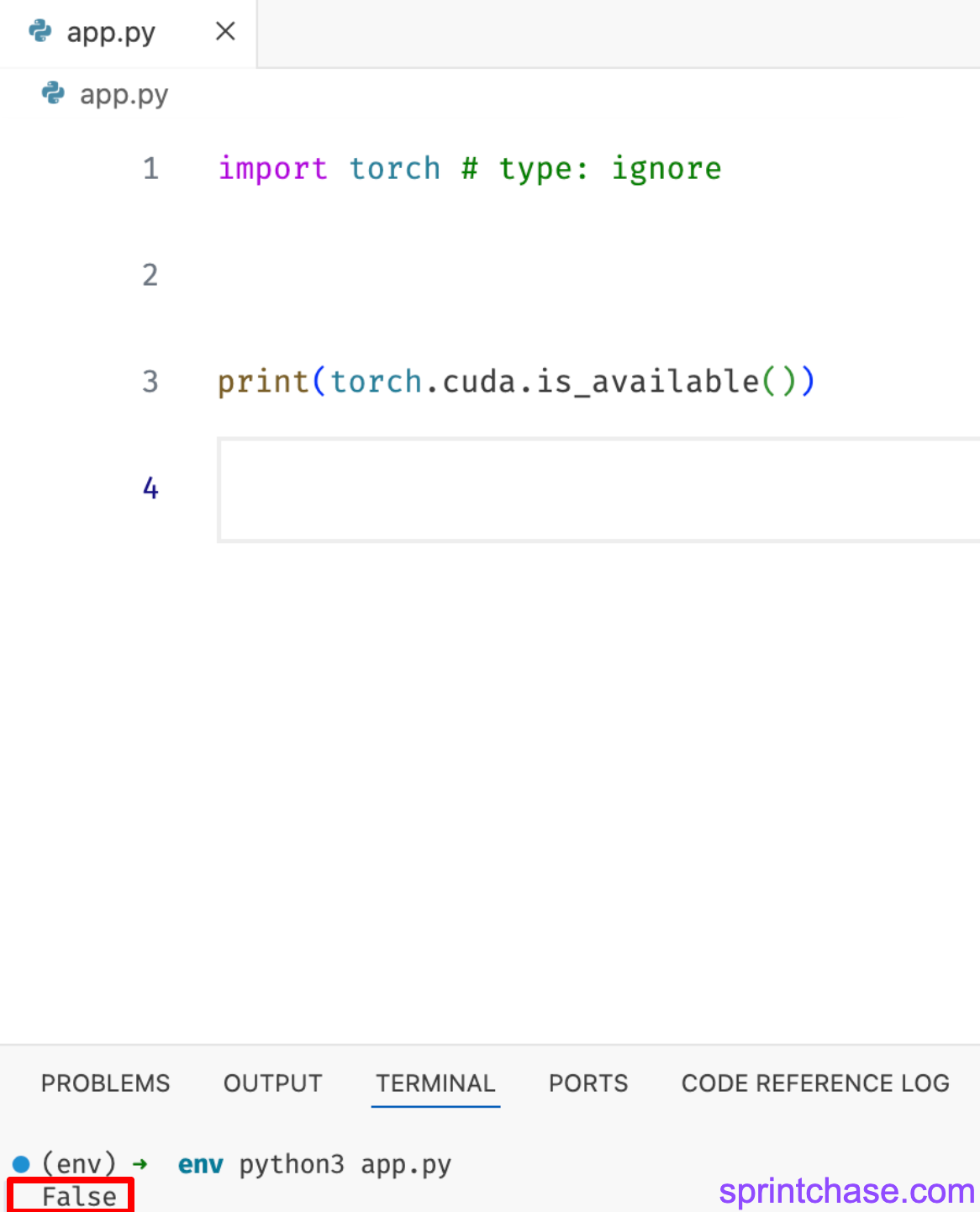
If we are running the above code on the CPU, it returns False.
We got True, which means we are connected to a CUDA-enabled GPU.
If we are running the above code on the CPU, it returns False.
import torch

print(torch.cuda.is_available())
Printing device name based on availability
You can use the torch.device() function to print the device name for clarity in an ML project.import torch
device = torch.device("cuda" if torch.cuda.is_available() else "cpu")
print(f"Using device: {device}")
# Output: Using device: cuda
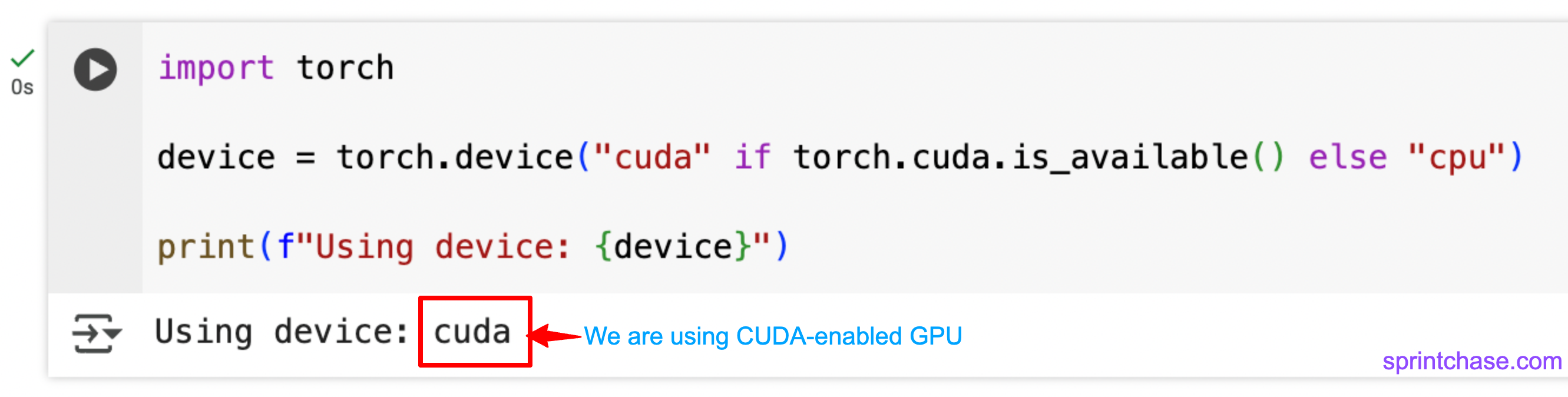
Since I am using a CUDA-enabled GPU, torch.cuda.is_available() method returns True.
What if we are working on the CPU? Let’s find out.
import torch

device = torch.device("cuda" if torch.cuda.is_available() else "cpu")

print(f"Using device: {device}")

# Output: Using device: cpu
As we can see, I am running on my Laptop, which is why it’s showing CPU.
Multi-GPU Check
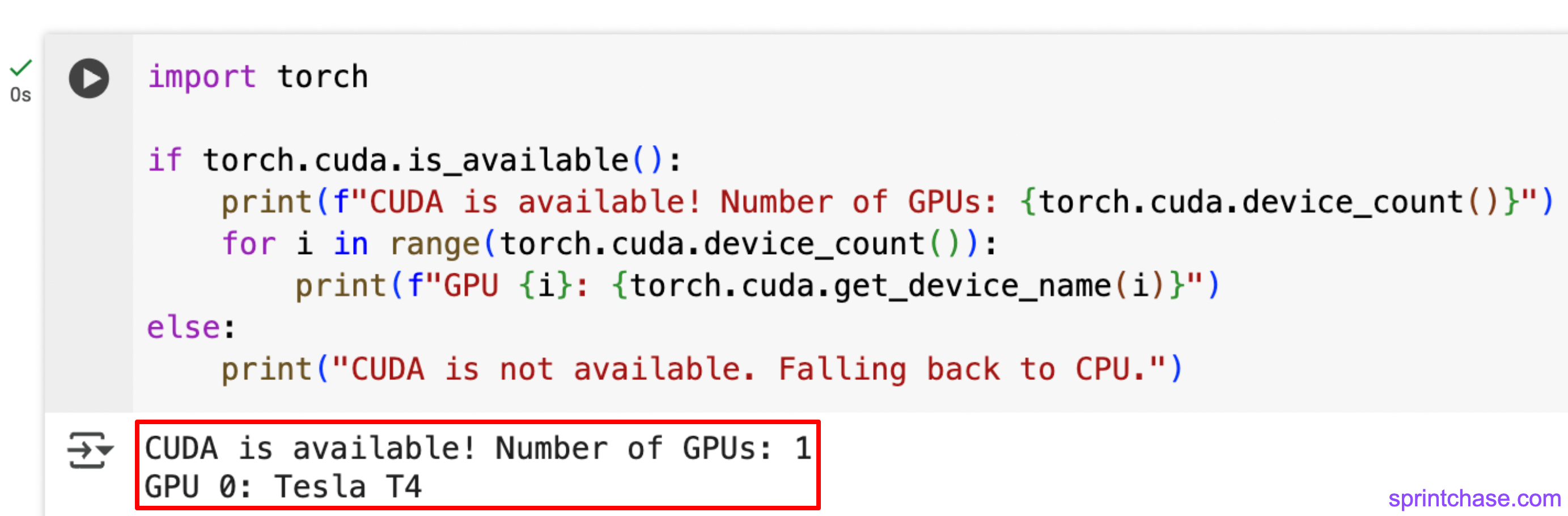
For distributed training, we might need multiple GPUs. Let’s count the number of GPUs and check if it is CUDA-enabled.
import torch

if torch.cuda.is_available():
    print(f"CUDA is available! Number of GPUs: {torch.cuda.device_count()}")
    for i in range(torch.cuda.device_count()):
        print(f"GPU {i}: {torch.cuda.get_device_name(i)}")
else:
    print("CUDA is not available. Falling back to CPU.")
 That’s all!